
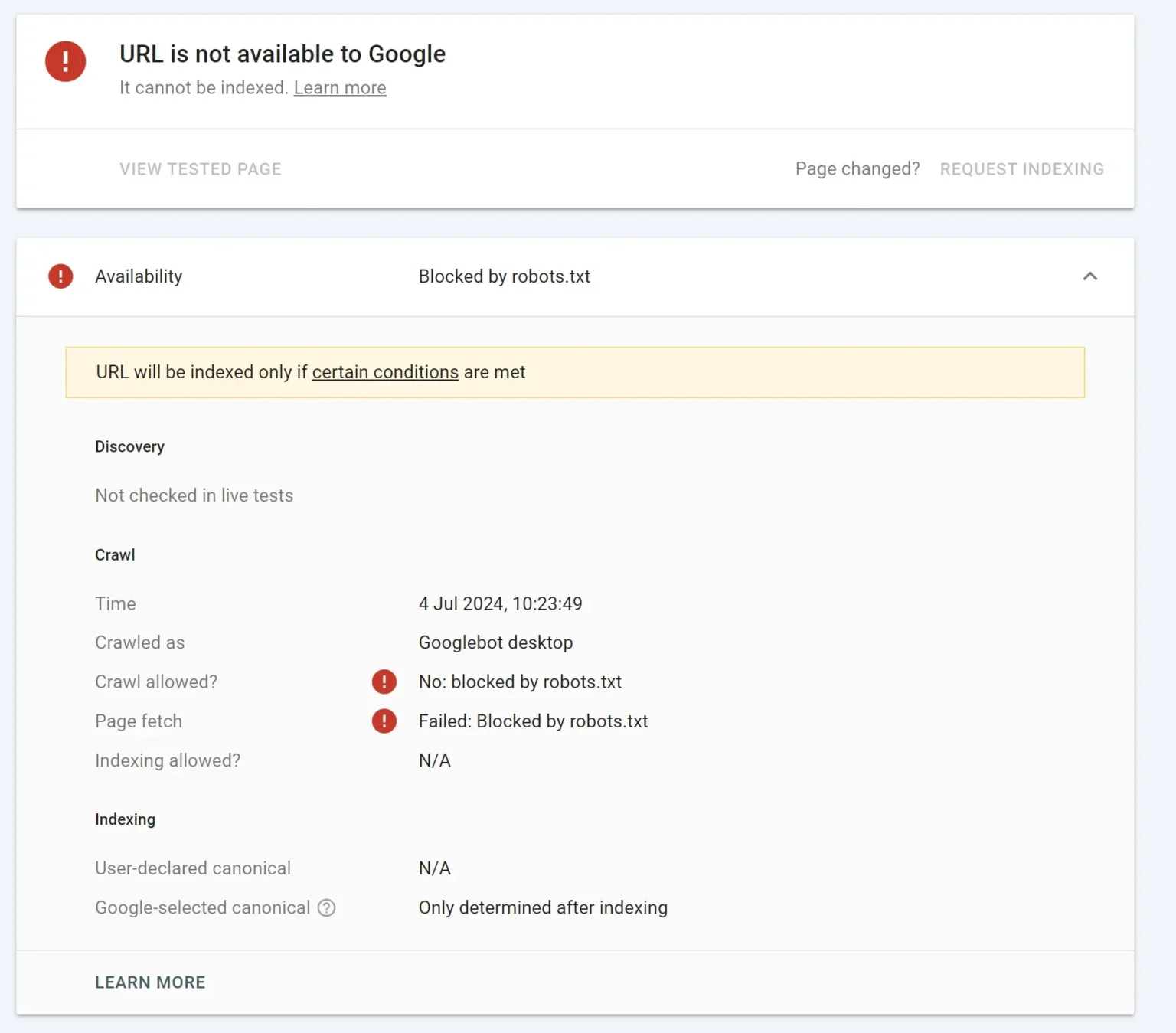
If you’re checking Google Search Console and notice that your pages are marked as “Blocked by robots.txt”, you’re probably wondering how to resolve this issue quickly before rankings drop.
So, what is robots.txt? It’s a plain text file located at the root of your domain that gives instructions to web crawlers (like Googlebot) indicating which directories they can and cannot crawl. Think of it like a security checkpoint deciding which doorways crawlers are permitted to enter.
If Googlebot cannot crawl your site, it cannot index your content. And if content cannot be indexed, your business will disappear from Google search results! Let's explore common causes, how to diagnose them in Search Console, and how to write clean robots.txt rules.
1Why is Google Being Blocked? Common Scenarios
Staging & Launch Oversight ("Disallow: /")
Developers frequently disallow the entire domain while building staging sites to prevent premature crawling. If the staging rules aren't removed prior to going live, Google is completely locked out of the website.
Accidental Wildcards & Broad Subfolder Blocks
Aiming to block an internal admin area or private PDF folder with broad regex patterns can inadvertently disallow public service pages, blogs, and landing pages.
Security Plugins & CMS Virtual Rewrites
Over-zealous WordPress security plugins or dynamic virtual robots rewrites can generate conflicting disallow directives.
2The Code of the Block: What Restrictive Rules Look Like
The file utilizes basic directives like User-agent and Disallow:
User-agent: *
Disallow: /User-agent: *
Disallow: /wp-admin/
Disallow: /private/3Diagnosing with Google Search Console
Google Search Console provides a dedicated live test suite to verify whether Googlebot can crawl specific URLs:
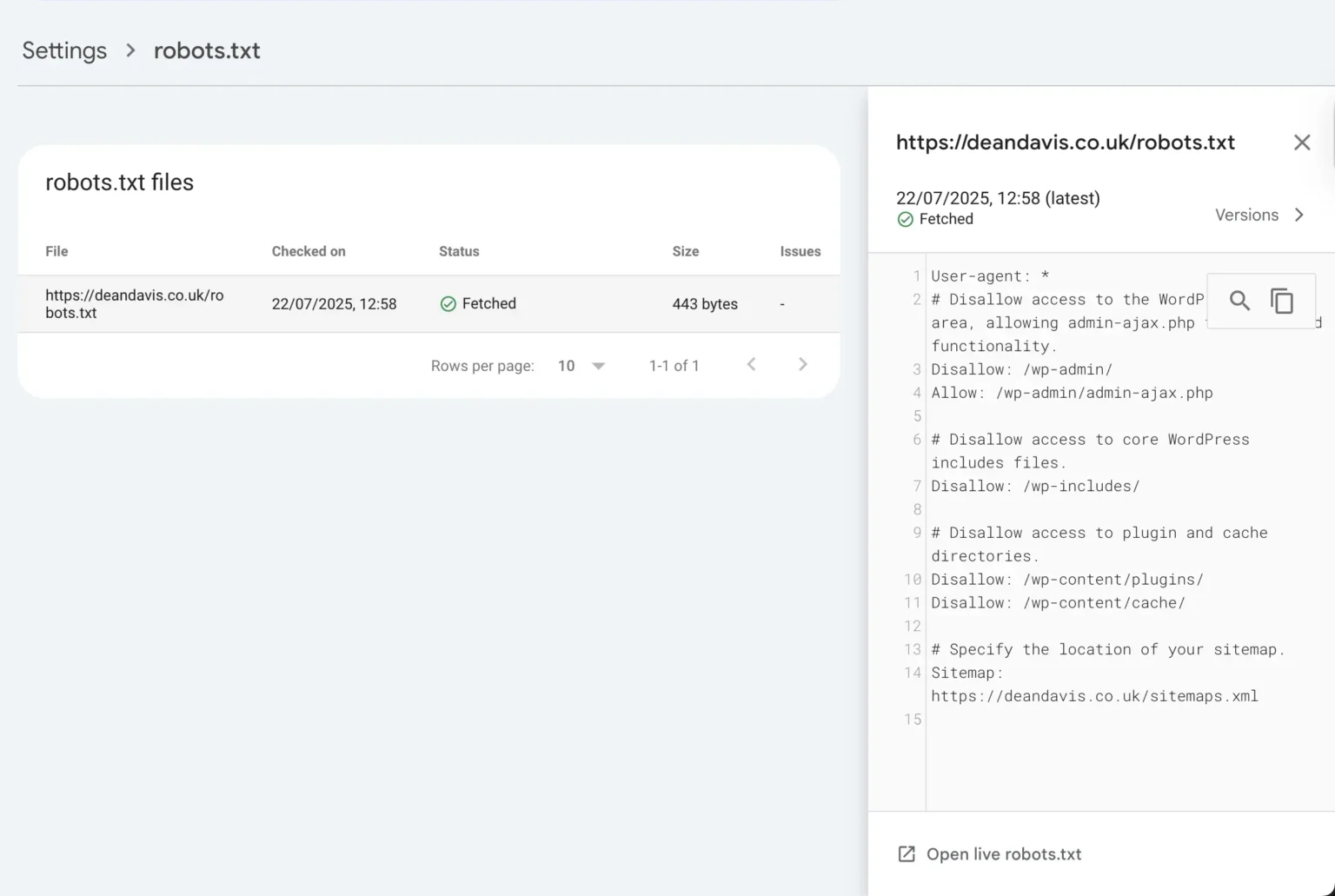
- In Google Search Console, navigate to Settings > Crawling > Robots.txt.
- Inspect the fetched robots.txt file to view what Googlebot has cached.
- Enter your target page URL into the tester box and click Test to see if it reports ALLOWED or BLOCKED.
4The Solution: Ideal Robots.txt Configuration
For the majority of standard websites looking to maximise search engine visibility, use the clean configuration below:
User-agent: *
Disallow: /wp-admin/
Allow: /wp-admin/admin-ajax.php
Allow: /

Sitemap: https://yourdomain.com/sitemap-index.xml
Important Distinction: Disallow vs. NoIndex
robots.txt (Disallow): Prevents crawlers from downloading and reading page content (conserves crawl budget).
NoIndex Meta Tag: Allows search engines to crawl the page, but instructs them not to display it in search results (e.g. thank-you pages or internal search result pages).
After the Fix: Verification & Indexing Request
- Re-test with the Tester: Confirm your key URLs now return ALLOWED.
- Request Indexing: Use the URL Inspection Tool in Search Console to request a fresh crawl for critical revenue pages.
- Monitor Coverage: Give Google 24–72 hours to re-crawl your updated robots.txt and clear the warning from your Coverage report.