

Maybe you want to register an SVG upload mime type. Maybe you need to disable XML-RPC, hook a custom script into the header, or clean up an admin notice. The solution is almost always the same: “Just drop this snippet into your functions.php file.”
Simple advice. But if you’re not careful, a single missing semicolon or misplaced curly bracket in that file will take down your entire site with a fatal PHP error.
As a freelance web designer, I see site owners break their live builds all the time by editing this file the wrong way. Let's walk through what this file actually does, where to find it across different server environments, and how to edit it without causing downtime.
What Does functions.php Actually Do?
Think of functions.php as your active theme’s engine room.
It behaves exactly like a WordPress plugin. The moment a page loads on your site, WordPress automatically calls this file to initialize theme features, enqueue stylesheets, register navigation menus, and run custom PHP functions.
The functions.php file belongs exclusively to your currently active theme. If you switch themes, every single snippet you put inside that file stops running immediately.
Step 0: The Non-Negotiable Child Theme Rule
Never edit the functions.php file of a parent theme directly.
When the theme developer releases a security patch or a feature update, WordPress completely overwrites every file in that theme directory. Any custom code you added directly to the parent theme disappears instantly.
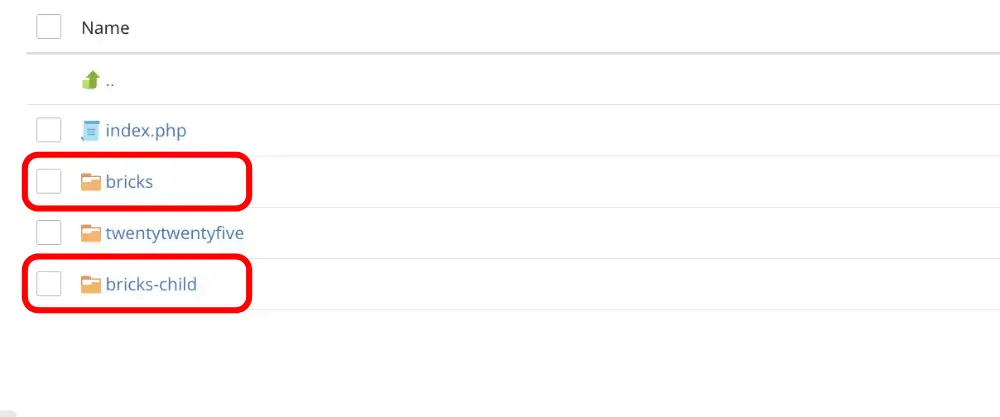
wp-content/themes/
├── your-theme/ <-- Do NOT edit functions.php here
└── your-theme-child/ <-- ALWAYS edit functions.php here
If you don’t have a child theme active, create one first or use a dedicated code-snippets plugin instead.
Where to Find the File: 4 Practical Methods
Depending on your hosting setup and comfort level, here are the four ways to locate and access functions.php.
1Method 1: Using an SFTP Client (Recommended)
RecommendedThis is the safest method because it gives you immediate recovery access if something breaks.
- ✓Connect to your web server using an FTP client like FileZilla or Cyberduck.
- ✓Navigate to your root directory:
public_html(orhttpdocs/www). - ✓Follow the file path:
wp-content > themes > your-active-child-theme. - ✓Right-click
functions.phpand choose View/Edit in your code editor (such as VS Code).
2Method 2: Via Your Hosting Control Panel (Plesk / cPanel)
If you do not have SFTP configured, your hosting file manager provides direct access via your browser.
- ✓Log into your hosting dashboard (Plesk, cPanel, or custom host panel).
- ✓Open the File Manager utility.
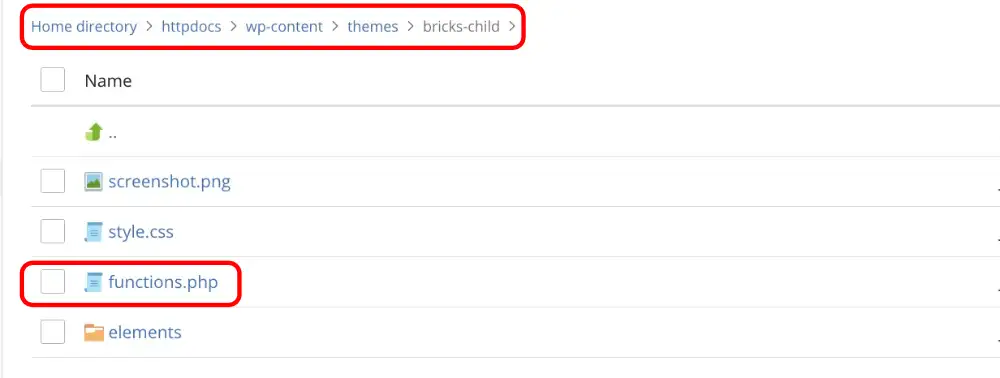
- ✓Open your domain folder, then drill down into
wp-content/themes/your-active-child-theme/. - ✓Select
functions.phpand click Edit (or Code Editor).
3Method 3: The WordPress Theme File Editor (Use With Caution)
Use With CautionWordPress includes a built-in code editor inside the dashboard.
- ✓Go to
Appearance > Theme File Editor(orTools > Theme File Editoron block themes). - ✓Look at the file list on the right-hand side under Theme Files.
- ✓Click on Theme Functions (
functions.php).
4Method 4: The Plugin Alternative (WPCode / FluentSnippets)
If you only need to add one or two small code snippets and don't want to touch raw theme files, use a snippet manager plugin.
- ✓Install a lightweight code manager (e.g., WPCode or FluentSnippets).
- ✓Paste your snippet into a new block.
- ✓Set the execution condition (run everywhere, frontend only, or admin only).
This approach ensures your custom code survives theme changes completely.
How to Edit functions.php Safely: Step-by-Step
1. Take a Full Backup: Never skip this step.
Download a copy of your existing, working functions.php file to your local computer and rename it functions-backup.php. If your edits crash the site, you can re-upload this file in five seconds to restore everything.
2. Open the File and Inspect Structure:
Ensure you know where the PHP opening tags are located. Most functions.php files begin with an opening <?php tag at line 1. Do not repeat <?php unless you previously closed a block with ?>.
3. Paste Your Snippet at the Bottom:
Add your custom function at the very bottom of the file (such as disabling XML-RPC or hardening your WordPress security). Always leave descriptive comments so you remember what the snippet does six months from now:
// Disable XML-RPC for enhanced security
add_filter('xmlrpc_enabled', '__return_false');4. Save and Test in Incognito:
Save the file and upload it to the server. Open a private/incognito browser window and reload your website. Check both the front end and the /wp-admin/ login screen to verify everything renders correctly.
What to Do If Your Site Crashes (White Screen / Fatal Error)
If you hit save and see a blank white screen or a “There has been a critical error on this website” message:
🛡️ Do not panic. Your database and content are completely safe.
- 1Open your SFTP client or hosting File Manager.
- 2Open
functions.phpand remove the snippet you just added (or re-upload yourfunctions-backup.phpfile). - 3Save the file. Your site will instantly come back online.